Twitch Extension
Introduction #
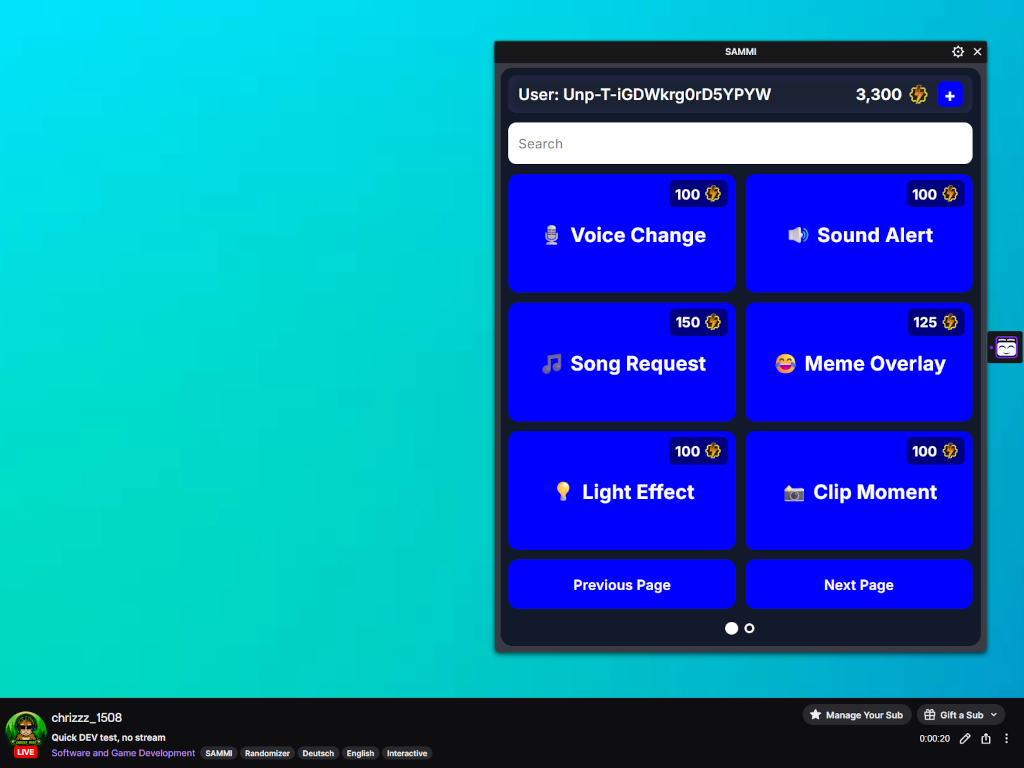
The official SAMMI Twitch Extension puts a panel on your Twitch channel that lets your viewers trigger your SAMMI buttons themselves.
You decide which buttons exist, what they are called, what they look like and how much Power each one requires. When a viewer presses one, SAMMI receives a trigger and runs whatever you built behind it - a sound, an overlay, a scene change, a whole automation chain.
Viewers can only press the buttons you configured. They cannot type anything, create their own buttons or send any other data to your SAMMI.
Requirements #
- SAMMI with a linked Twitch account
- SAMMI Bridge, connected to SAMMI
- The extension installed and activated on your Twitch channel
Bits unlocks are only available to channels that are eligible for Bits. Everything else works without them.
Connect SAMMI to the extension #
The extension talks to SAMMI through the SAMMI Bridge. There are two ways to open that connection.
Automatically (recommended)
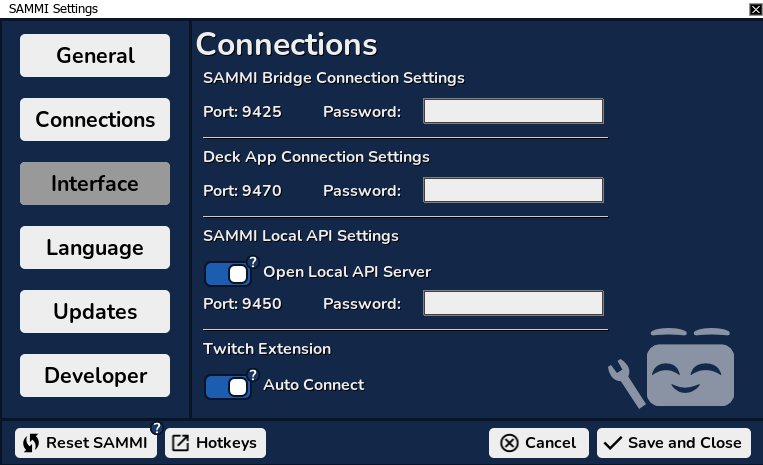
- In SAMMI open Settings - Connections.
- Under Twitch Extension, turn Auto Connect on.
- Save and close.
From now on the Bridge connects on its own whenever it starts.
Manually
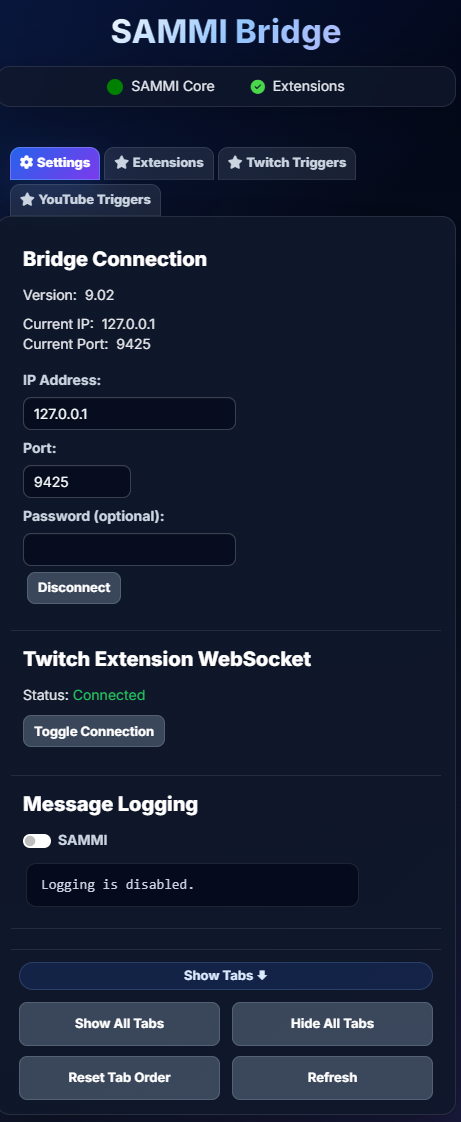
- Open the SAMMI Bridge.
- On the Settings tab, find Twitch Extension WebSocket.
- Press Toggle Connection. The status switches to
Connected.
If SAMMI is not connected when a viewer presses a button, the redemption fails, the viewer is told so, and their Power is given back automatically.
What Power is #
Power is the value viewers use to press your buttons. It only exists inside the extension.
- Every viewer starts with 500 Power on your channel, free of charge.
- Power is per channel. Power unlocked on your channel cannot be used anywhere else.
- Power has no cash value. It cannot be paid out, transferred or traded.
Viewers who want more can unlock Power with Bits through the Power menu.
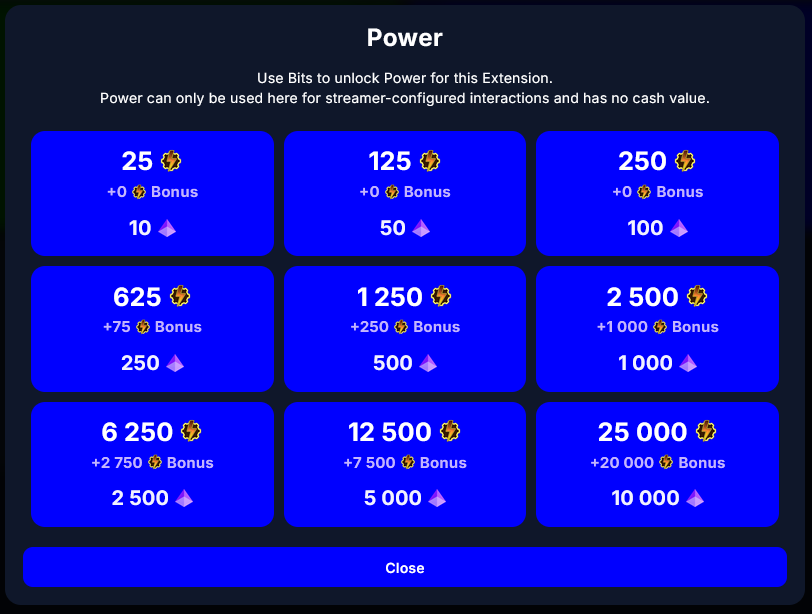
The base rate is 2.5 Power per Bit. Larger unlocks come with a bonus on top:
| Bits | Power | Bonus | Total |
|---|---|---|---|
| 10 | 25 | - | 25 |
| 50 | 125 | - | 125 |
| 100 | 250 | - | 250 |
| 250 | 625 | +75 | 700 |
| 500 | 1 250 | +250 | 1 500 |
| 1 000 | 2 500 | +1 000 | 3 500 |
| 2 500 | 6 250 | +2 750 | 9 000 |
| 5 000 | 12 500 | +7 500 | 20 000 |
| 10 000 | 25 000 | +20 000 | 45 000 |
Bits spent in the extension are split by Twitch: 80% goes to you, 20% to the extension developer. Twitch sets that split for every Bits-enabled extension - it is the same for all of them and not something SAMMI chooses. The developer share covers the running costs behind all of this - servers, code signing certificates, domains - as well as SAMMI’s ongoing development.
Rules for your buttons #
Your buttons must follow the Bits Acceptable Use Policy, the Community Guidelines and the Terms of Service.
Fine - on-stream digital effects:
- Playing a sound or a sound alert
- Showing, hiding or animating an overlay
- Switching or changing an OBS scene, source or filter
- Changing your voice, your camera, your lights
- Starting a poll, a wheel spin or a minigame on stream
Not allowed:
| Not allowed | Why |
|---|---|
| Real-world goods or services | Bits may not be used to buy anything that exists outside the stream. |
| Off-Twitch benefits | No Discord roles, game keys, subscriptions elsewhere, coaching, shoutouts on other platforms. |
| Money, donations or financial support | Power is not a payment and must not be framed as one. |
| Specific song or music track requests | Playing a requested track is a licensing problem and is not allowed. A generic sound effect you own is fine. |
| Giveaways, raffles, contests, gambling or wagering | Includes anything where Power buys a chance to win. |
| Anything against the Community Guidelines | Harassment, hateful content, sexual content, and so on. |
What happens if a button breaks the rules
- The button is removed from your channel. It disappears for viewers, can no longer be triggered, and cannot be saved again - not even under a different name, if it is the same button in disguise.
- You receive a notice in the extension that you have to confirm before you can change your configuration again.
- Repeated cases mean losing the ability to add new buttons, then losing Bits in the extension, and finally losing access to the extension entirely.
Violations are reported to Twitch.
Create your buttons #
- On Twitch, go to Creator Dashboard - Extensions - My Extensions and open the extension’s Configure page.
- Stay on the Twitch View tab. This is the panel exactly as your viewers see it, with editing controls added.
- Press the + tile to add a button.
- Press the pencil icon on a button to edit it.
- Use the arrows on a button to move it left or right.
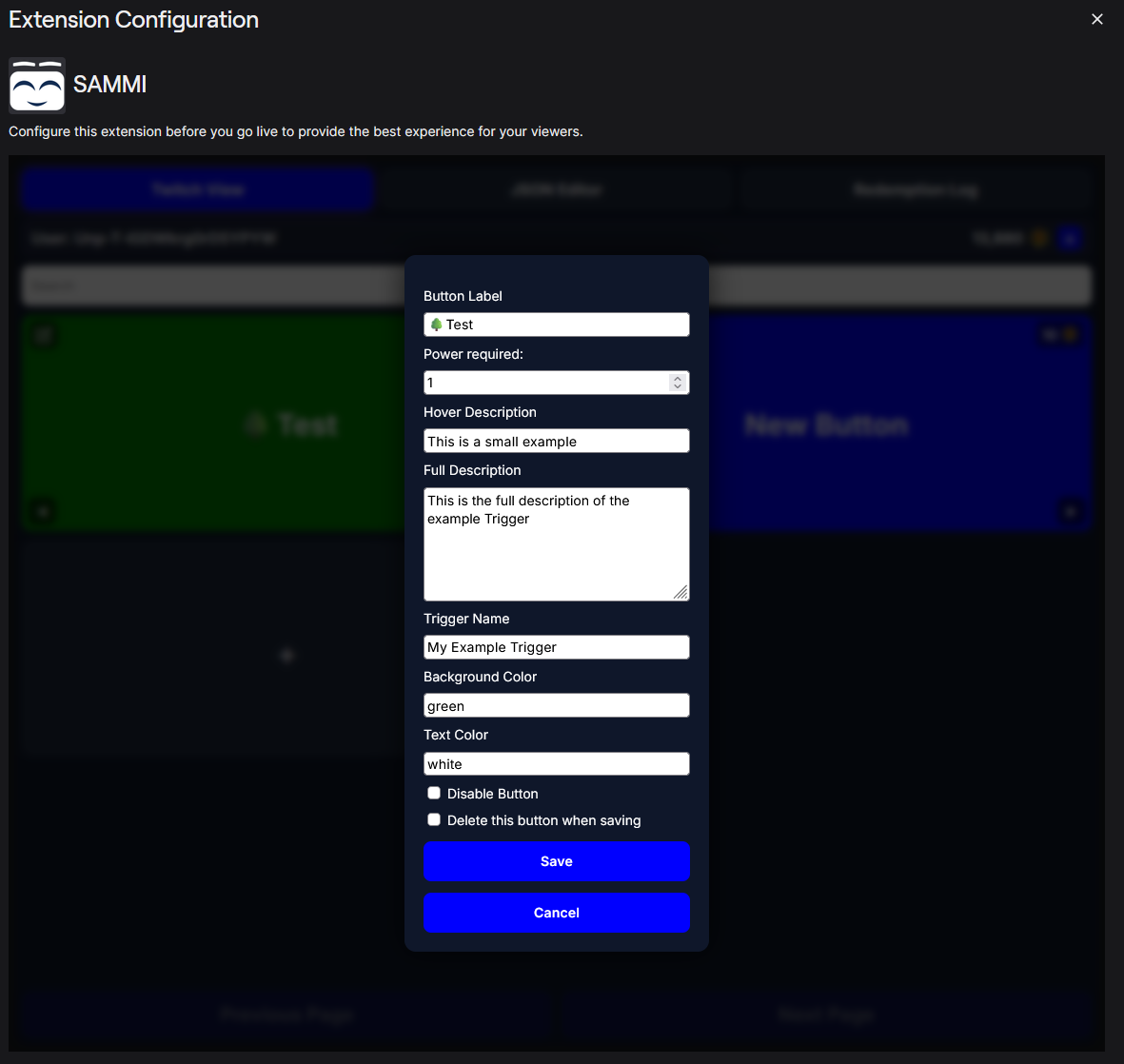
| Field | What it does |
|---|---|
| Button Label | What the viewer reads on the button. Emojis are fine. |
| Power required | How much Power pressing it takes. Without SAMMI Pro the minimum is 100. |
| Hover Description | One short line, shown when a viewer hovers the button. |
| Full Description | The longer text in the confirmation dialog, before the viewer commits. |
| Trigger Name | The link to SAMMI. This is the text your SAMMI trigger listens for. |
| Background Color | Any CSS color, e.g. green, #1f8b4c or rgb(31,139,76). |
| Text Color | Same, for the label. |
| Disable Button | Hides the button from viewers without deleting it. |
| Delete this button when saving | Removes the button when you press Save. |
Your changes are saved to your channel as soon as you press Save - no need to restart anything.
JSON Editor #
The JSON Editor tab shows your whole configuration as text. It is useful for bulk edits, reordering many buttons at once, or copying a setup between channels.
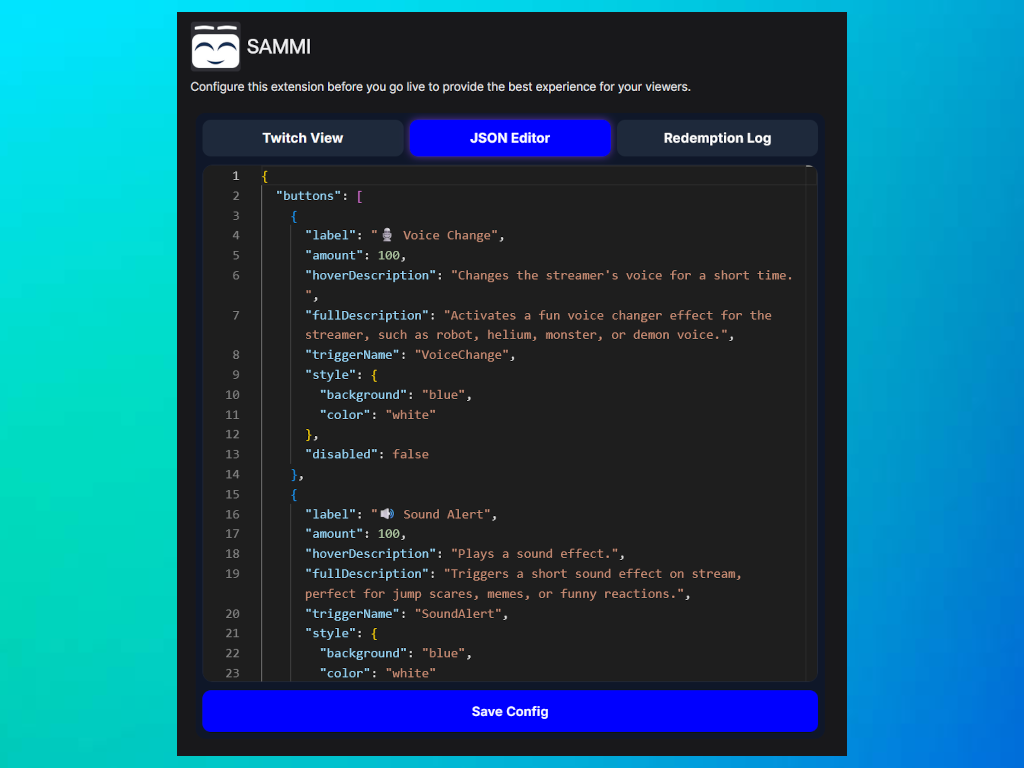
It checks your JSON while you type and will tell you if something is wrong. Press Save Config when you are done.
The settings block holds the defaults for the whole panel:
{
  "buttons": [
    {
      "label": "🌳 Test",
      "amount": 150,
      "hoverDescription": "This is a small example",
      "fullDescription": "The longer text shown before confirming",
      "triggerName": "My Example Trigger",
      "style": { "background": "green", "color": "white" },
      "disabled": false
    }
  ],
  "settings": {
    "font": "Inter, sans-serif",
    "defaultButtonDesign": {
      "style": { "background": "blue", "color": "white" }
    }
  }
}
Receive the button in SAMMI #
- Right click a button in SAMMI - Edit Triggers (or CTRL + double click).
- Press + and choose Twitch Extension.
- Put the Trigger Name from the extension into the Message field. It has to match exactly.
- Press Save.
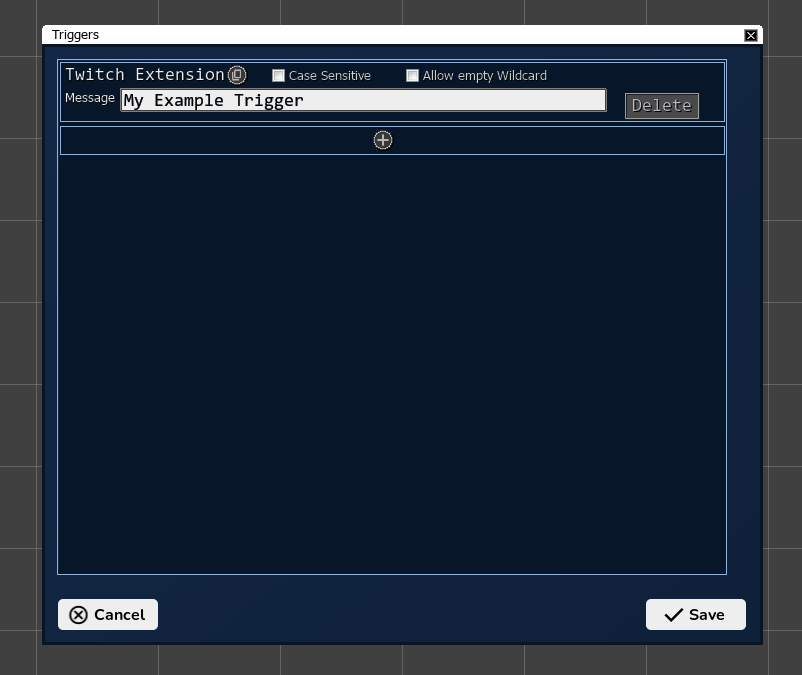
Use Trigger Pull Data inside the button to read who pressed it and what they pressed. All available values are listed under Integration Triggers.
Test without a viewer #
You do not need a real viewer to build your buttons. The SAMMI Bridge can send a test trigger.
- Open the SAMMI Bridge and go to the Twitch Triggers tab.
- Find Twitch Extension and press Show Options.
- Fill in the fields and send the trigger.
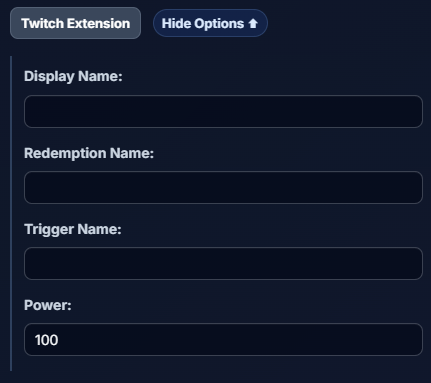
| Field | What it does |
|---|---|
| Display Name | The viewer name the test pretends to come from. Left empty, a random one is used. |
| Redemption Name | The button label. Left empty, a random example name is used. |
| Trigger Name | What your SAMMI trigger listens for. Left empty, the Redemption Name is used. |
| Power | The Power amount in the test event. Defaults to 100. |
No Power is taken from anyone and nothing is written to your redemption log - the test only sends the trigger to SAMMI.
Redemption Log #
The Redemption Log tab lists everything your viewers redeemed in the last 72 hours, newest first. Click a column header to sort.
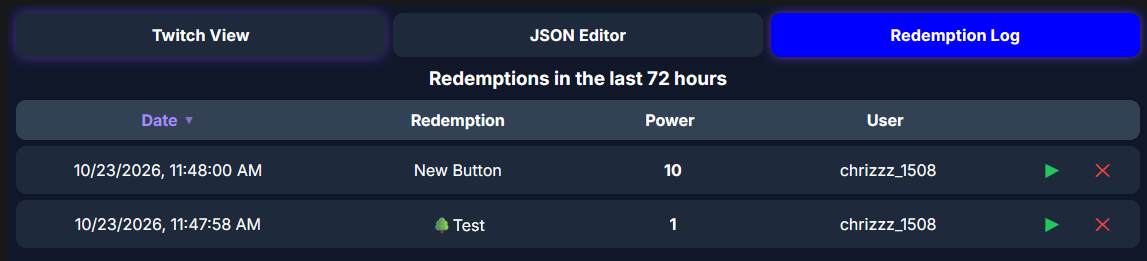
Each entry has two actions:
- ▶ Replay sends the same trigger to SAMMI again. Useful when something went wrong on your side - an overlay did not load, SAMMI was restarting, a scene was missing. The viewer is not charged again.
- ✕ Cancel refunds the Power to the viewer and removes the entry. Use it when you could not deliver what the button promised.
SAMMI Pro #
SAMMI Pro removes the Power floor in the extension.
| Free | SAMMI Pro | |
|---|---|---|
| Minimum Power per button | 100 | any value, including 0 |
| Everything else | identical | identical |
A button set to 0 Power can be pressed without any Power at all, which is handy for a free “say hi” interaction next to your paid ones. Without Pro, anything you set below 100 is raised to 100 when you save.
Troubleshooting #
| Problem | What to check |
|---|---|
| Nothing happens when a button is pressed | Is SAMMI running and is the Bridge connected? The extension tells the viewer when it is not, and gives the Power back. |
| The trigger does not fire | The Trigger Name in the extension and the Message in the SAMMI trigger must match exactly, including spaces and capitalisation if Case Sensitive is on. |
| A button disappeared after saving | It was either removed for a rule violation, or it shared a Trigger Name with another button. The extension tells you which. |
| The Power menu is missing for viewers | Bits in Extensions are not available on your channel, or Bits were disabled for it. |
| Power values jumped back to 100 | That is the minimum without SAMMI Pro. |
Legal #
Viewers and broadcasters both have to accept these once before using the extension.